
macOS 14.4+ · Mac App Store
Your Mac won't record its own sound. This does.
Screenshot recording, QuickTime and Voice Memos only capture your microphone. Start Audio Capture instead and record exactly what you hear — a Zoom call, a browser tab, Spotify, or the whole system.
- No virtual audio driver
- No system extension
- No restart

Free on the Mac App Store. macOS 14.4 or later.
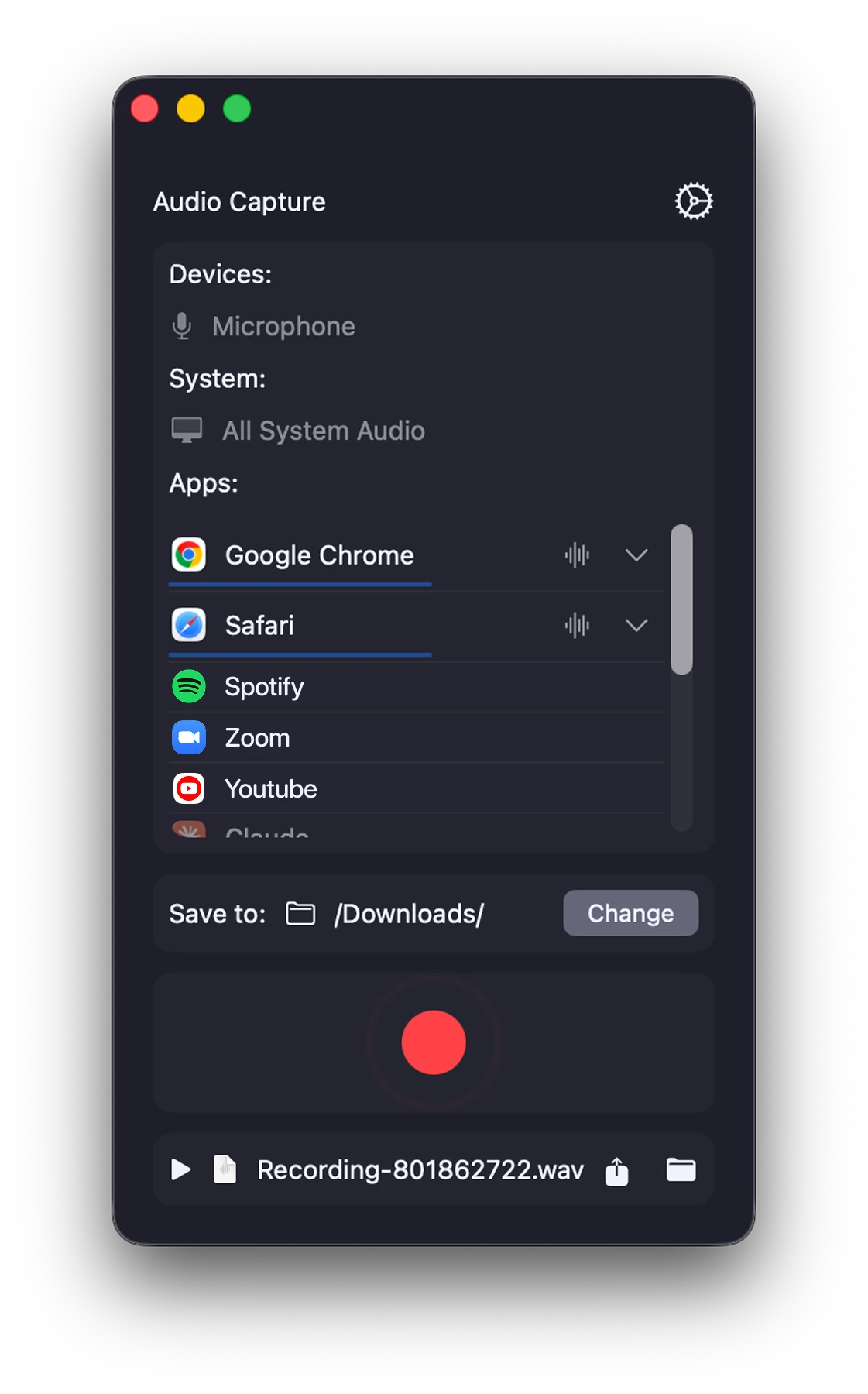
How it works
Three steps, about ten seconds.
- 01
Pick a source
Choose one app, all system audio, your microphone — or several at once. Running apps appear in the list automatically.
- 02
Hit record
One red button. Audio Capture sits in the menu bar, so it stays out of the way while your call or lecture runs.
- 03
Take the file
The recording lands in the folder you chose. Play it back, reveal it in Finder, or share it straight from the app.
The difference
Nothing gets installed into macOS.
Most tools for this job route audio through a virtual sound device you have to install, approve and sometimes reboot for. Audio Capture doesn't. It uses the recording APIs macOS already ships with, which is why the whole app is 1.2 MB and works the moment it finishes downloading.
Other tools
- Install a virtual audio driver or system extension
- Approve it in System Settings, sometimes restart
- Your sound output device changes
- Uninstalling means cleaning up system files
Audio Capture
- Installs from the Mac App Store like any other app
- Grant one recording permission and you're done
- Your audio setup is untouched
- Drag it to the Trash and it's gone
Features
Everything a recording actually needs.
Choose your sources
-
Record one app at a time
Capture Chrome without picking up Slack notifications. Each running app is its own source.
-
System audio and microphone
Record what your Mac plays, your own voice, or both in the same session.
-
Mix sources with separate levels
Two apps and a mic in one file, each with its own volume slider — set before or during the take.
Record cleanly
-
Clean, full-quality output
Recorded digitally from the source, so there's no room echo and no hiss from playing through speakers.
-
WAV or M4A
Lossless WAV, or compact M4A based on AAC. You choose.
-
See the take as it runs
A timer sits next to the record button, so you always know how long you've been going.
Your files
-
Save wherever you like
Point it at Downloads, Desktop, a project folder or an external drive. It remembers.
-
Recent recordings in the menu bar
The latest takes are listed right in the menu bar. Open one in Finder or remove it from the list.
-
Drag recordings anywhere
Drag a recording from the menu bar into your music app, Finder or any other app.
-
Play it back right away
The built-in player lets you listen to a take the moment it ends.
Built for the Mac
-
Lives in the menu bar
Start and stop without hunting for a window. It stays reachable while you're presenting.
-
Control it from the icon
Point at the menu bar icon to start and stop a recording, switch sources or open the window. Right-click for a quick menu.
-
Keyboard shortcuts
Press ⌥⇧R to start or stop a recording and ⌥⇧A to show or hide the menu bar window, from any app. Change either one in Settings.
-
Close the window, keep recording
The app stays in the menu bar. If a take ends while the window is closed, the menu bar tells you the file is saved.
-
Ten interface languages
English, French, German, Italian, Japanese, Korean, Portuguese, Russian, Simplified Chinese and Spanish.
Private and light
-
Nothing to install but the app
No sound driver and no system extension. It uses the recording interfaces macOS already has, so the app is about 1.2 MB.
-
Stays on your Mac
Recordings are saved on your Mac. No account, no cloud.
Updated regularly.
-
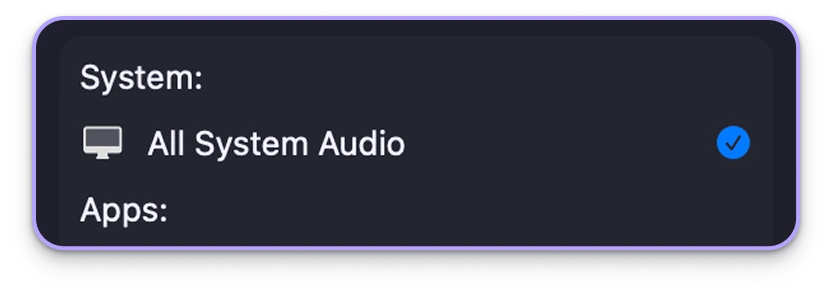
All system audio in one take
One switch records everything your Mac is playing — every app, every alert, every tab.
-
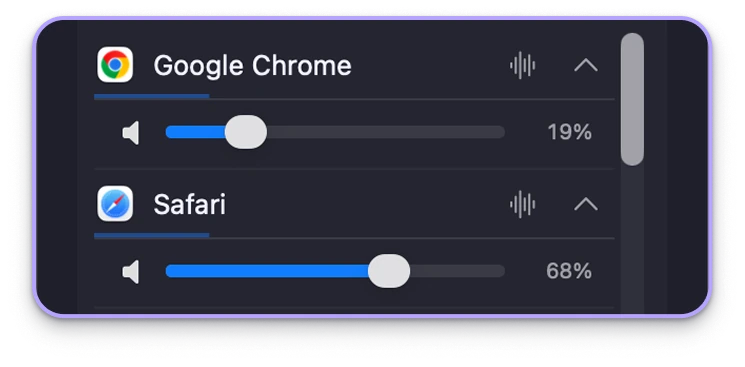
Per-app volume, live
Chrome at 19%, Safari at 68% — balance the mix while the recording is running.
-
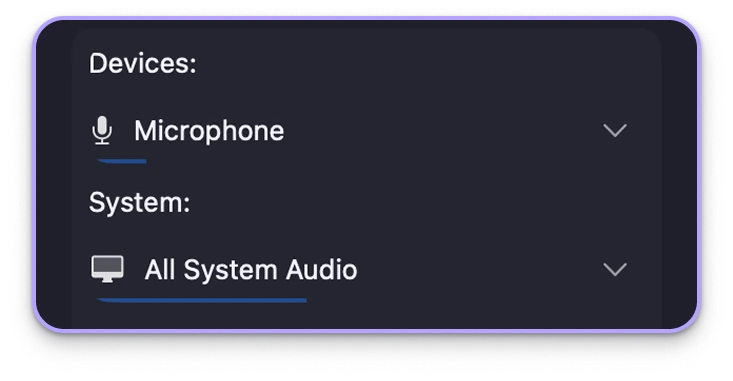
Talk over what you capture
Add your microphone alongside system audio for commentary, walkthroughs and interviews.
What people record
Built for the calls you can't repeat.
-
Calls and meetings
Keep a clean copy of a Zoom, Meet or Teams call — both sides, not just the room you're sitting in.
-
Lectures and webinars
Record the audio of a class or training session straight from the browser tab it's playing in.
-
Podcasts and interviews
Capture your remote guest and your own mic in one session, each on its own level.
-
Streams and gameplay
Pull the audio out of a live stream or a game session while it happens.
-
Music and audio you're working on
Grab the output of an app that has no export button so you can listen back or edit elsewhere.
-
Voice notes with context
Record a walkthrough with your narration on top of whatever the screen is playing.
Please record only what you have the right to record. Audio Capture is not for capturing DRM-protected content, and local law on recording conversations is your responsibility.
Pricing
Free to download. Plans for when you record a lot.
Download it free and start recording. If recording becomes part of your routine, pick the plan that fits. Every plan renews automatically until you cancel.
-
Weekly Access
$2.99 per week
For a one-off week — a conference, a course, a single project.
-
3-day free trial
3 Months
$19.99 per 3 months
The middle option. Works out cheaper than seven separate weeks.
-
7-day free trial
Annual Plan
$49.99 per year
Best value if recording calls or lectures is part of your routine.
Prices shown in USD for the US App Store; your local price may differ. Subscriptions are billed through your Apple Account and renew automatically unless cancelled at least 24 hours before the period ends. You can cancel anytime in System Settings → Apple Account → Subscriptions.
FAQ
Questions people ask.
Do I have to install an audio driver or extension?
No. Audio Capture uses the audio recording APIs built into macOS, so nothing is added to your system, your sound output device doesn't change, and no restart is needed. That's also why the app is only 1.2 MB.
Can it record a Zoom call, Spotify, or a browser tab?
Yes. Any app currently making sound shows up in the source list — Zoom, Meet, Teams, Chrome, Safari, Spotify and so on. Pick it and record. You can also record all system audio at once instead of choosing an app.
Can I record my own voice at the same time?
Yes. Select your microphone alongside the app or system audio. Both go into the same recording, and each source has its own volume slider so you can balance them.
What permission does it ask for, and why?
macOS asks for permission to record audio the first time you start a recording. That's the system's standard consent prompt — without it, macOS won't let any app capture sound. Recording a microphone source also requires microphone access.
Where do the recordings go?
Into the folder shown next to "Save to" in the window — Downloads by default. Press Change to point it anywhere: Desktop, a project folder, or an external drive. The choice is remembered for next time.
Do my recordings get uploaded anywhere?
No. Recording happens on your Mac and files are written straight to the folder you chose. Audio Capture has no account, no cloud storage and no upload feature — your audio never leaves your computer.
How do I cancel?
Subscriptions are handled by Apple, not by us. Open System Settings → Apple Account → Subscriptions (or the App Store app → your account → Subscriptions), pick Audio Capture and cancel. Cancel at least 24 hours before the period ends to avoid the next charge.
Record what you hear.
Free on the Mac App Store. macOS 14.4 or later, 1.2 MB.